![fit3d_logo.png]](https://service.fit3d.com/hs-fs/hubfs/fit3d_logo.png?height=40&name=fit3d_logo.png)
Connect the SNAP app to your Fit3D facility using the Activation Code from your welcome email.
Before You Begin
You will need:
- Your SNAP scanning tablet
- For iOS (coming by September, 2026), we recommend an iPad released after 2024
- For Android, we recommend Galaxy Tab A9, A10, and A11 devices
- The SNAP by Fit3D app installed
- A stable internet connection
- Your facility Activation Code
- You will receive this in an email with the subject line: (SNAP Activation Code and Welcome to Fit3D)
Activate Your SNAP Scanner
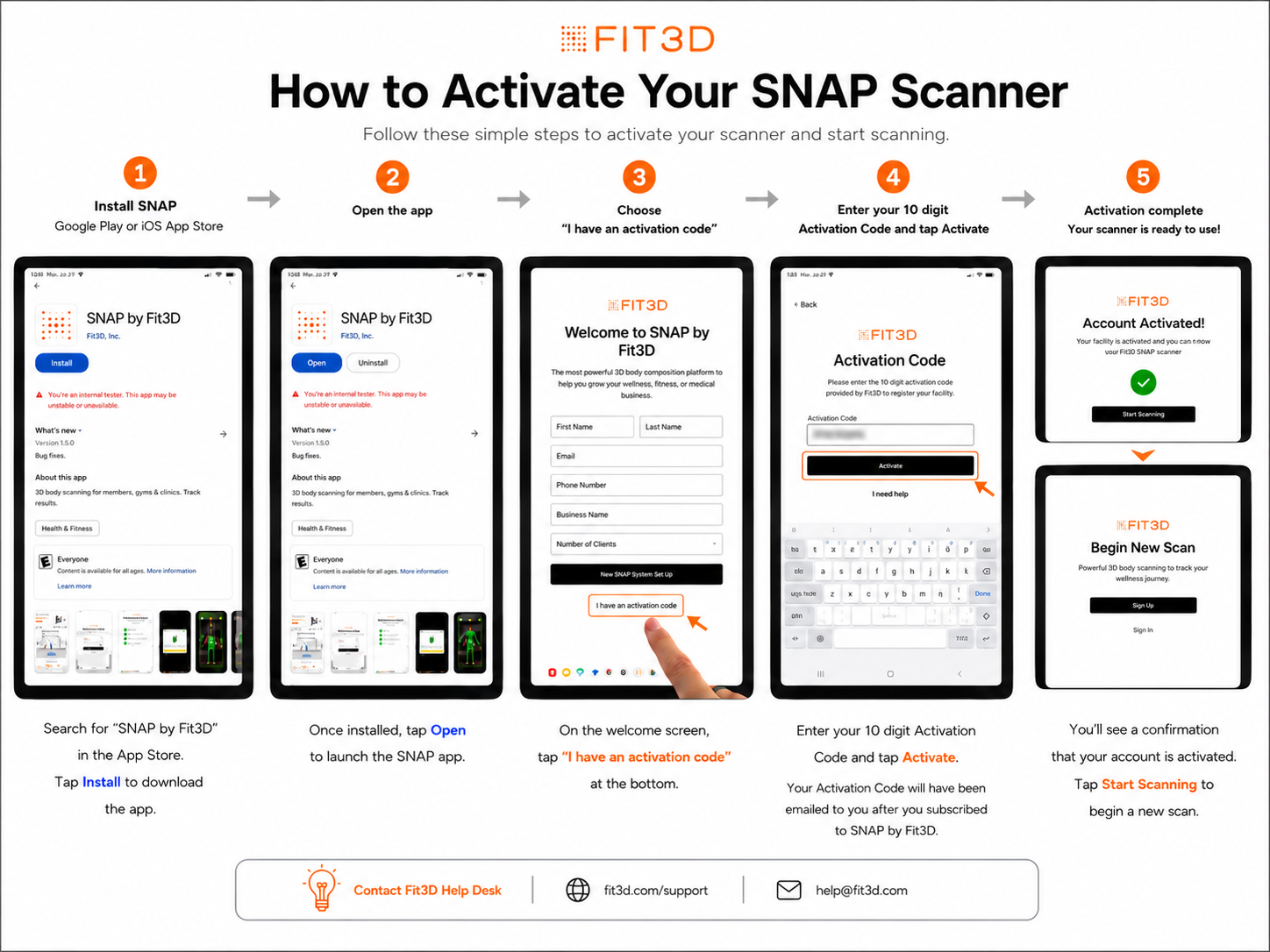
- Open the SNAP by Fit3D app.
- Select the option to activate the device.
- Enter the Activation Code from your Fit3D welcome email.
- Confirm that the correct facility name appears.
- Allow any required app permissions when prompted.
- Complete the activation process.
Your tablet is activated when the SNAP app opens under the correct facility and is ready for a user to sign in.
Activation Code Not Working?
Confirm that:
- The code was entered exactly as shown
- There are no extra spaces before or after the code
- The case of each letter is correct
- The tablet is connected to the internet
- You are using the Activation Code assigned to your facility
Need Help?
Email help@fit3d.com and include:
- Facility name
- Activation Code
- Tablet model
- Screenshot of any error message