![fit3d_logo.png]](https://service.fit3d.com/hs-fs/hubfs/fit3d_logo.png?height=40&name=fit3d_logo.png)
SNAP App Language Settings
The SNAP app will display in different languages based on your Android tablet’s system language settings.
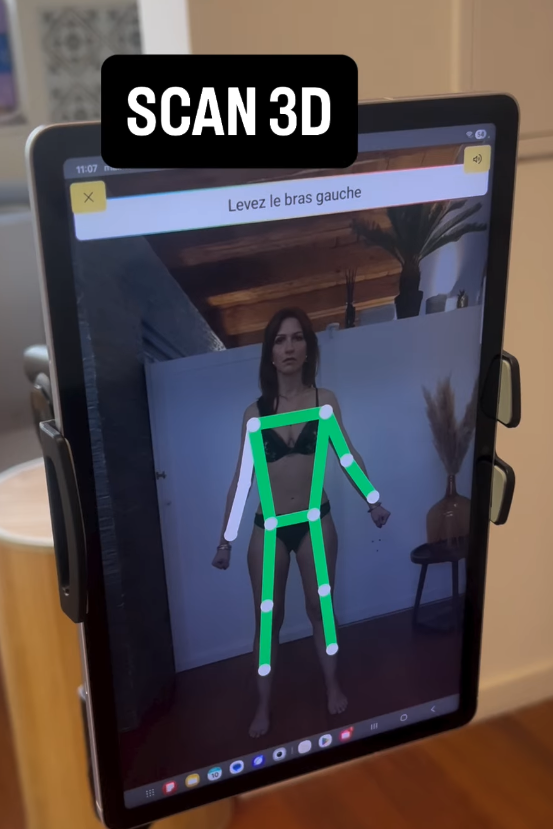
How It Works
SNAP does not have a separate in-app language selector. Instead, it follows the default language set on your tablet.
-
If your tablet is set to Spanish → SNAP will display in Spanish
-
If your tablet is set to Portuguese → SNAP will display in Portuguese
-
And so on, depending on supported languages
Important Notes on Language Behavior
There are a few important details to be aware of:
-
The initial welcome screens and new customer input fields will still appear in English
-
Once the scan process begins, the app will switch to the selected language
-
On-screen prompts during the scan will display in your selected language
-
Audio instructions are currently only available in English
We are actively working on improving full language support across the entire experience. This current setup is the best available workaround.
How to Change the Language
To update the language in SNAP, you’ll need to change your tablet’s system language:
-
Open Settings on your tablet
-
Tap System or General Management (on Samsung devices)
-
Tap Language
-
Select your preferred language or add a new one
-
Move your preferred language to the top of the list
Important: Restart the App
After changing your tablet language:
-
Fully close the SNAP app
-
Reopen the app
This ensures the new language is applied correctly.
If the Language Doesn’t Update
If SNAP is still showing the old language:
-
Force close the app and reopen it
-
Restart your tablet