![fit3d_logo.png]](https://service.fit3d.com/hs-fs/hubfs/fit3d_logo.png?height=40&name=fit3d_logo.png)
How to Request Full Access to the 3D Grayscale View (SNAP by Fit3D)
If you or your clients want to unlock the full 3D grayscale avatar view, access permissions must be updated. This article walks through exactly how to request and grant that access.
Understanding Access Levels
In all Fit3D scans, users control who can see their scans. There are three permission levels:
-
Full Access → Full 3D avatar (including grayscale view) + data
-
Limited Access → Silhouette view + data only
-
No Access → No visibility
Only Full Access allows viewing the complete 3D grayscale scan
For Coaches/Admins: How to Request Access
If you don’t currently have full access:
-
Log into your admin dashboard
-
Find the client scan
-
Hit the 4th icon (three lines)
-
Click "Request Client Access"
This will email the client so you can see their full profile.
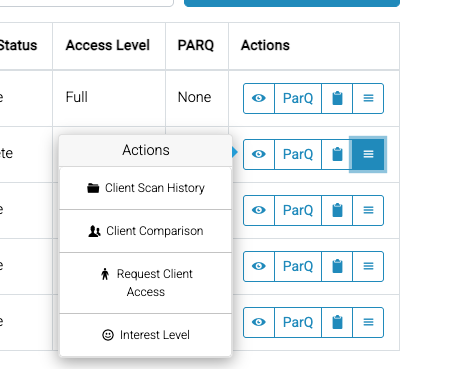
Once submitted:
-
The client must approve the request
-
You’ll gain full grayscale view after approval
For Clients: How to Grant Full Access
-
Log into your Fit3D dashboard:
Access your dashboard -
Navigate to your profile or scan settings
-
Find the section for Coach/Trainer Access
-
Select the coach you want to update
-
Change permission to:
Full Access (3D Avatar + Data) -
Save your changes
Key Notes
-
Clients fully control their data and privacy
-
Coaches cannot override access—approval is always required
-
If you can’t see the grayscale view, it’s almost always due to Limited Access
If you’re still not seeing the grayscale view after access is granted, double-check permissions or reach out to Fit3D support for help.